How to File GSTR-3B – Step by Step Guide

Pintu Dadhaniya
1 month agoIntroduction:
GSTR-3B is a monthly (or quarterly, under the QRMP scheme) self-declared summary return in which a registered taxpayer reports total outward supplies, input tax credit (ITC) claimed, and the net GST payable. Unlike GSTR-1, it does not carry invoice-level detail — it is a summary on which your tax is actually paid. In this guide we walk through filing GSTR-3B on the official GST portal (gst.gov.in) step by step, with illustrative screens. All GSTIN and personal details in the images are masked for privacy.
Step 1: Login to the GST Portal
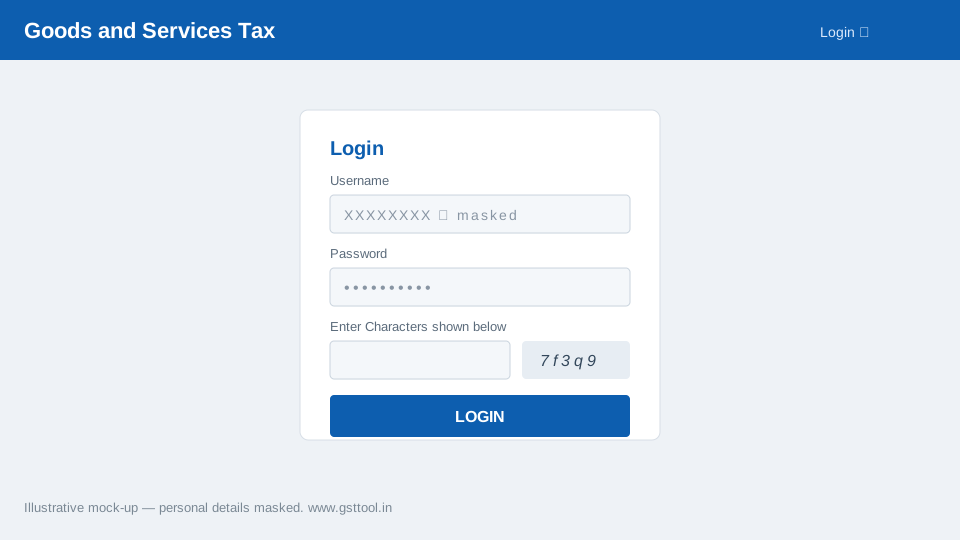
Open www.gst.gov.in and click Login. Enter your username, password and the captcha shown, then click LOGIN to reach your dashboard.
Step 2: Open the Returns Dashboard and select the period
From the top menu go to Services → Returns → Returns Dashboard. Choose the correct Financial Year and Return Period (month), then click Search. On the GSTR-3B tile, click Prepare Online.
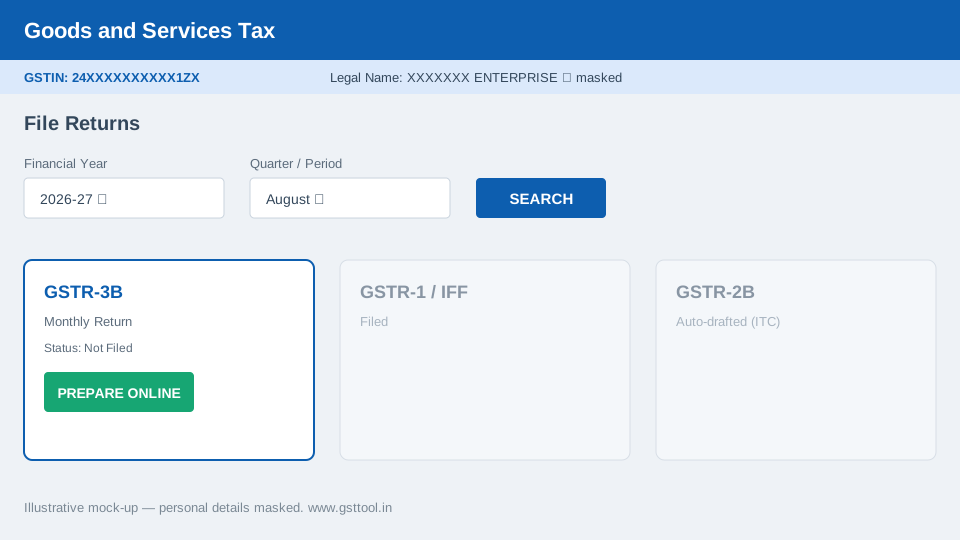
Note: The portal first asks a short questionnaire (Nil return? Any outward supplies? Any ITC? etc.). Answer honestly — if you have no transactions at all, you can file a Nil GSTR-3B in a single click or by SMS.
Step 3: Verify Table 3.1 & 3.2 — Outward Supplies
Table 3.1 (outward supplies) and Table 3.2 (inter-State supplies to unregistered persons) are now auto-populated from your filed GSTR-1 / IFF. Cross-check these figures against your books and your marketplace TCS statement before proceeding. Report taxable, zero-rated, nil-rated/exempt supplies and any inward supplies liable to reverse charge in the correct rows.
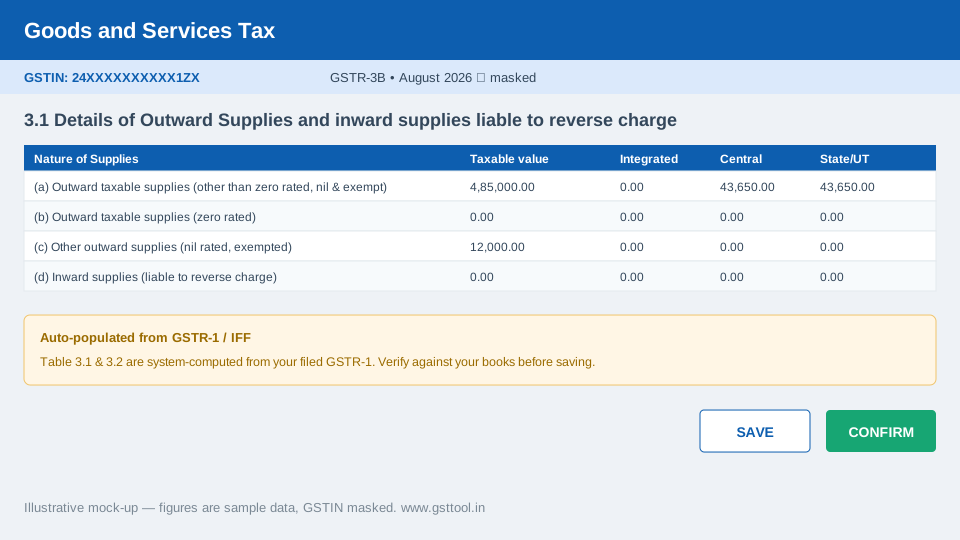
If your GSTR-1 was prepared using the GST Online Seller tool, these totals should already match your uploaded marketplace data.
Step 4: Claim Input Tax Credit in Table 4
Table 4 captures your eligible ITC. The available credit is auto-drafted from GSTR-2B. Enter ITC available under (A), any reversals under (B), and the portal computes the net eligible ITC (C). Claim only what appears in your GSTR-2B and is backed by a valid purchase invoice.
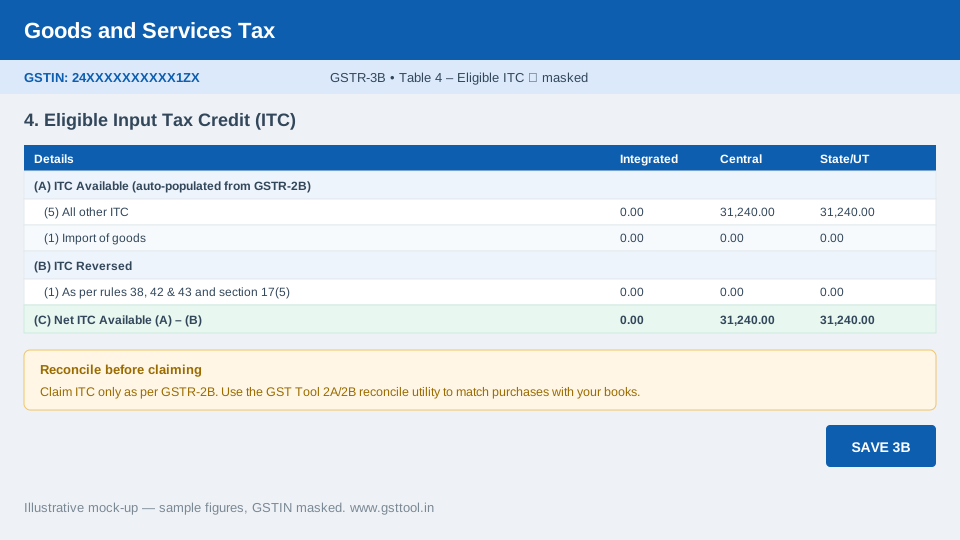
Tip: Reconcile your purchase register with GSTR-2B first to avoid claiming ineligible credit. Our 2A/2B reconciliation tool makes this quick.
Step 5: Save the return, then Preview
Click Save GSTR-3B after filling each section. Once all tables are complete, use Preview Draft GSTR-3B to download a PDF and confirm every figure. Saving does not file the return — it only stores your data.
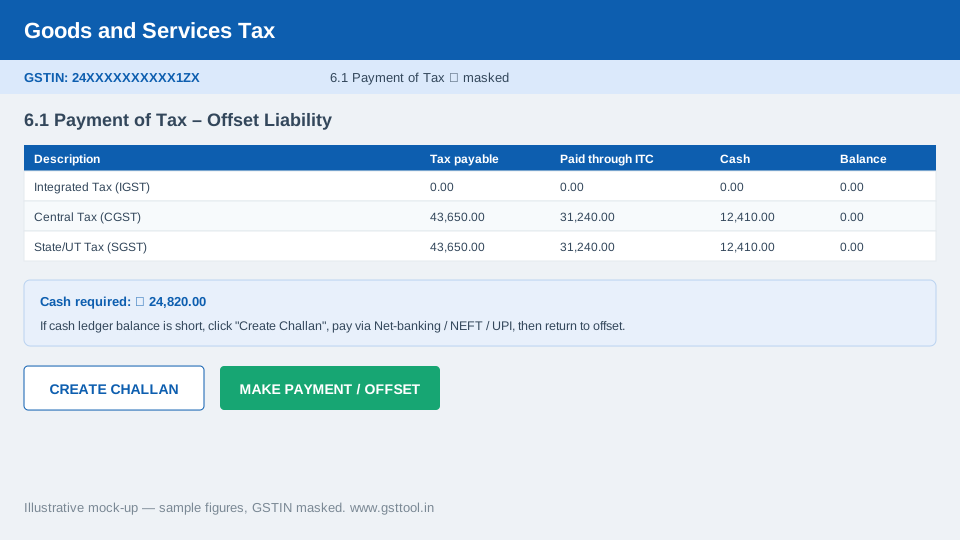
Step 6: Pay tax and offset liability (Table 6.1)
Open Proceed to Payment. The portal shows tax payable, the amount adjustable from ITC, and the balance to be paid in cash. If your electronic cash ledger is short, click Create Challan, pay via Net-banking / NEFT-RTGS / UPI, then return and click Make Payment / Offset.
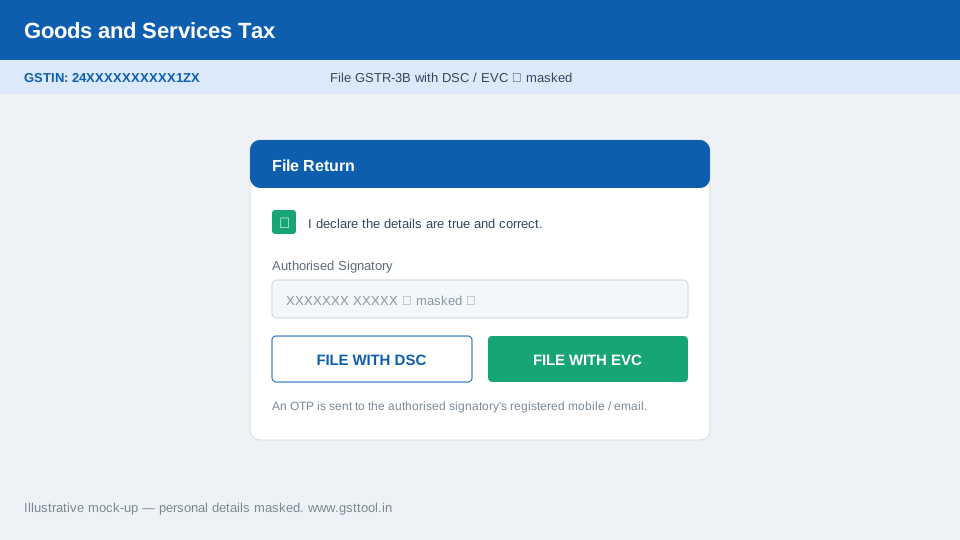
Step 7: File GSTR-3B with DSC or EVC
Tick the declaration checkbox, select the Authorised Signatory, and click File GSTR-3B. Companies and LLPs must use a DSC; proprietors and others can use EVC (an OTP sent to the registered mobile and email). After successful filing you will receive an ARN as confirmation.
Due date and late fee
For monthly filers, GSTR-3B is generally due on the 20th of the following month; QRMP taxpayers file quarterly (22nd/24th, depending on State). Filing late attracts a late fee plus interest at 18% p.a. on the tax paid in cash. You can estimate this with our GSTR-3B Late Fees Calculator.
Conclusion
Filing GSTR-3B is straightforward once your GSTR-1 and GSTR-2B are in order: verify the auto-populated outward supplies, claim only reconciled ITC, pay the net tax, and file with DSC or EVC. Keep your marketplace data clean with the GST Tool and your monthly filing stays quick and error-free.
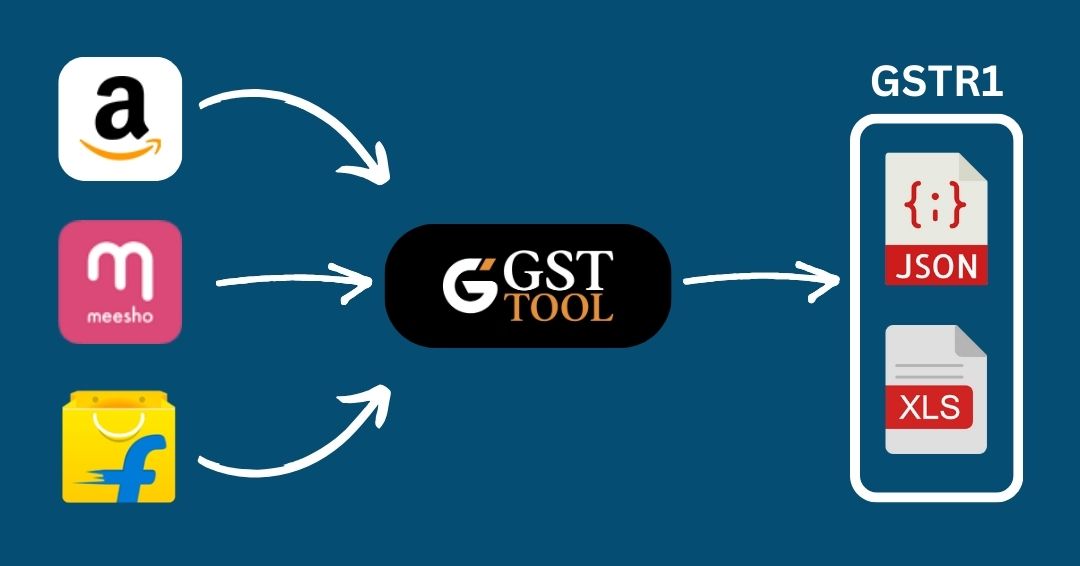
GST Online Seller
Convert E-Commerce Data To GSTR1 Excel/Json
